
How to Use Bitwarden Password Manager: Quick Start Guide

New to Bitwarden? This quick start guide covers installing the app or browser extension, logging in with your Master Password, and best practices for managing your vault.

Identity
KB-20260902-BITWARDEN-QUICKSTARTUpdated September 2, 20264 minutesNTS Support Team

Quick Answer

Bitwarden is a password manager that stores your logins in a Vault. To get started, install the Bitwarden browser extension, desktop app, or use the web vault, then sign in with your email and Master Password to unlock your vault. Use the browser extension for the fastest logins, and never share, save, or reuse your Master Password anywhere else.

How to Use Bitwarden Password Manager: Quick Start Guide

What Is Bitwarden

Bitwarden is a password manager that lets you securely store the passwords you use most often. This stored collection of logins is called your Vault.

You can reach your vault three ways: a web-based URL, a browser extension, or a desktop or mobile application. All three require signing in with your Master Password.

Download Bitwarden or Add the Browser Extension

Desktop and mobile apps (iPhone, Android, Windows, Mac, Linux): https://bitwarden.com/download/#downloads-desktop-applications

Web-based vault: https://vault.bitwarden.com/#/login

Browser extension for Microsoft Edge: https://microsoftedge.microsoft.com/addons/detail/bitwarden-password-manage/jbkfoedolllekgbhcbcoahefnbanhhlh?hl=en-US

Browser extension for Google Chrome: https://chromewebstore.google.com/detail/bitwarden-password-manage/nngceckbapebfimnlniiiahkandclblb?hl=en-US

The browser extension is the option most people use day to day, since it can fill in usernames and passwords directly on the login page instead of requiring you to copy and paste from the app or web vault.

Logging In and Unlocking Your Vault

Once Bitwarden is installed, open the extension, app, or web vault and enter your email address.

Enter your Master Password when prompted and select Unlock to access your vault. Here is what that screen looks like in the browser extension:
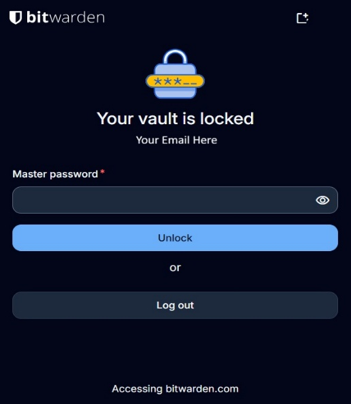
Bitwarden browser extension showing the vault locked screen with the Master Password field

Your Master Password is the one password that unlocks everything else, so treat it differently than any other login — see the do's and don'ts below.

Do's: Best Practices for Using Bitwarden

•Check which vault you are adding credentials to before saving a new login.
•Use the browser extension for day-to-day logins — it fills in credentials automatically and is faster than copying and pasting from the app.
•Label each login entry clearly so it's easy to identify later.
•Use the search function within Bitwarden to find saved logins instead of scrolling through the full list.

Don'ts: What to Avoid

•Don't share your Master Password with anyone, including coworkers or IT support.
•Don't save your Master Password inside Bitwarden itself.
•Don't save your Master Password in your web browser's built-in password manager.
•Don't change company vault information without permission from your administrator.

Getting Help

If you're locked out of your vault, unsure which vault to use, or run into an issue setting up Bitwarden, our team can help.

Request remote support from NTS

Related Articles

Identity

Managing Access with Azure AD Groups

Best practices for structuring Azure Active Directory security groups to simplify lifecycle management and audits.

Read article: Managing Access with Azure AD Groups
Identity

Microsoft Authenticator Setup Guide for Microsoft 365

Step-by-step guidance for rolling out Microsoft Authenticator as a second factor for Microsoft 365 users, including backup and recovery considerations.

Read article: Microsoft Authenticator Setup Guide for Microsoft 365
Identity

Google Authenticator Setup Guide for Google Workspace

Help users enroll in Google Authenticator for Google Workspace with platform-specific instructions, rollout tips, and backup best practices.

Read article: Google Authenticator Setup Guide for Google Workspace